
A few years ago, I realized that while I used the internet every day, I didn’t really understand how it worked. I could browse websites, send emails, or watch videos, but tasks like troubleshooting connectivity issues, understanding browsers, or protecting my data online often left me frustrated.
I decided to learn the fundamentals of the internet and web usage. After some trial and error, I discovered practical strategies that make the web easier, safer, and more productive. These aren’t technical lectures—they’re simple, actionable tips that anyone can follow.
In this guide, I’ll walk you through internet basics, web navigation, online safety, and tips for getting the most out of the web.
Understanding the Internet
Before diving into practical tips, it helps to understand what the internet really is.
What is the Internet?
The internet is a global network of computers that allows information to be shared worldwide. It connects servers, devices, and networks so you can access websites, apps, and online services.
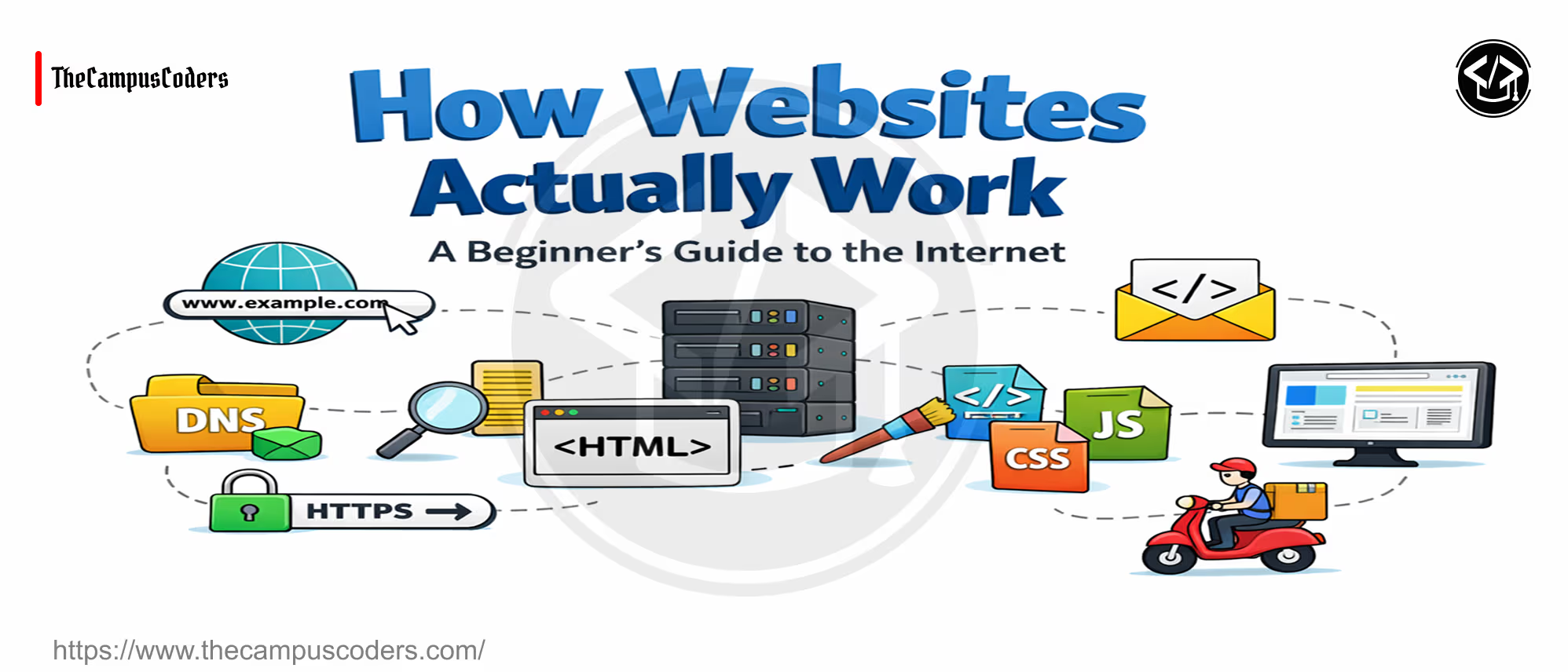
How the Web Works
-
Websites are hosted on servers.
-
Browsers like Chrome, Firefox, or Safari retrieve and display content from these servers.
-
Search engines help you find specific content on the web.
Essential Internet & Web Skills
These are the core skills that help anyone navigate the web efficiently.
1. Using a Web Browser
A browser is your gateway to the internet.
Key Tips:
-
Update your browser regularly for speed and security.
-
Use bookmarks to save frequently visited websites.
-
Learn keyboard shortcuts:
-
Ctrl + T: Open a new tab
-
Ctrl + W: Close a tab
-
Ctrl + L: Jump to the address bar
-
Why it helps: Makes browsing faster, safer, and more organized.
2. Searching Effectively
Search engines are powerful, but knowing how to search correctly saves time.
Tips for better searches:
-
Use specific keywords. Instead of “recipe,” search “easy chicken curry recipe.”
-
Use quotes for exact phrases:
"home-style lasagna recipe" -
Add minus signs to exclude words:
apple -fruit
Why it helps: You find accurate results faster.
3. Understanding URLs & Websites
-
URL: The address of a website, e.g.,
www.example.com. -
HTTPS: Indicates a secure site. Avoid entering sensitive info on HTTP sites.
-
Domain extensions:
.com,.org,.eduindicate the type of website.
Why it helps: Helps you identify trustworthy websites and avoid scams.
4. Managing Emails and Online Accounts
Emails are essential for communication online.
Tips:
-
Use strong passwords and 2FA.
-
Avoid spam by not sharing your email publicly.
-
Organize folders and labels to keep your inbox manageable.
Why it helps: Reduces clutter and protects your personal information.
5. Downloading & Installing Files Safely
Not all downloads are safe.
-
Only download from official or trusted websites.
-
Check file extensions:
.exe,.dmg,.apkcan be harmful if from untrusted sources. -
Scan downloads with antivirus software.
Why it helps: Prevents malware and keeps your device secure.
6. Using Cloud Services
Cloud services like Google Drive, OneDrive, and Dropbox allow you to:
-
Store files safely
-
Access data from multiple devices
-
Share files easily with others
Tips: Enable two-step verification for cloud accounts.
Practical Internet Habits
These habits improved my online experience:
-
Limit multiple tabs: Too many tabs slow down browsing.
-
Regularly clear cache and cookies: Keeps browsers fast and secure.
-
Check privacy settings: Control who sees your information online.
-
Update devices regularly: Protects against vulnerabilities.
Common Mistakes When Using the Internet
Even experienced users make mistakes:
-
Clicking suspicious links in emails or ads
-
Sharing personal info on untrusted websites
-
Using weak or repeated passwords
-
Ignoring software and browser updates
-
Overlooking data backups
FAQs About Internet & Web Basics
1. What is the difference between the internet and the web?
The internet is the global network of devices. The web is a system of websites and content accessed through the internet.
2. How can I tell if a website is safe?
Look for HTTPS in the URL, read reviews, and avoid suspicious links or pop-ups.
3. What are cookies and should I allow them?
Cookies store website information for convenience. Allow them on trusted sites but clear regularly to protect privacy.
4. How do I avoid phishing scams?
Do not click unknown links, check sender details, and verify requests for personal information.
5. Can the internet slow down my device?
Yes. Too many tabs, outdated browsers, malware, or full storage can affect speed. Regular maintenance helps.
Conclusion: Make the Web Work for You
The internet doesn’t have to be confusing or overwhelming. By understanding how it works, using browsers effectively, managing accounts safely, and practicing digital awareness, you can navigate the web confidently.
Start with small habits: organize bookmarks, use strong passwords, and search effectively. Over time, the internet becomes a powerful tool for learning, productivity, and entertainment—not a source of frustration.